


Uploading files
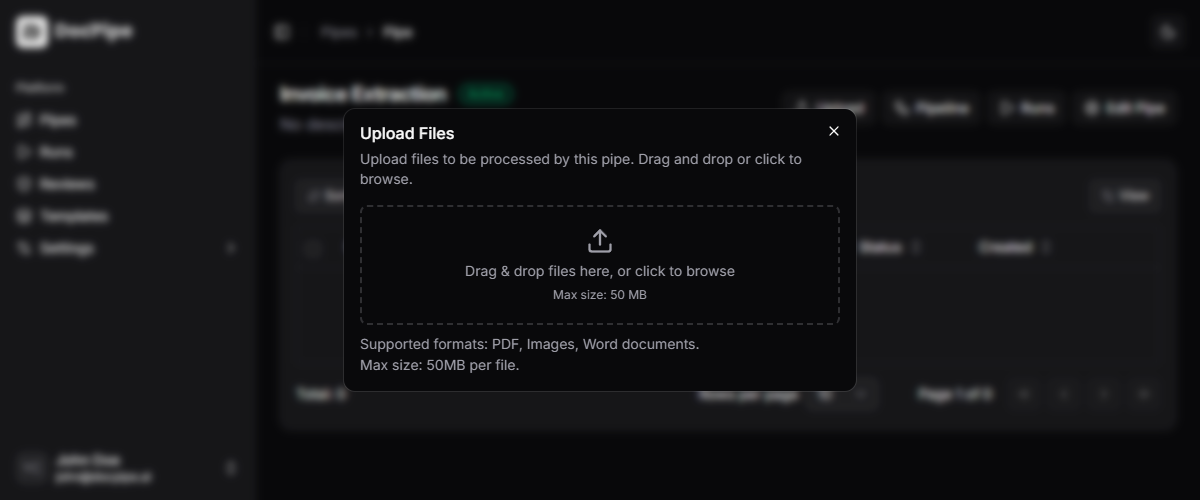
You can upload files in two ways:- Drag and drop: drag files directly onto the upload area
- Click to browse: click the upload area to open a file picker
File status
Each file shows its current processing status:| Status | Description |
|---|---|
| Pending | Upload initiated |
| Uploaded | File received, waiting for processing |
| Processing | Pipeline is actively running |
| Completed | Processing finished successfully |
| Failed | Processing encountered an error |
| Review | Waiting for human review |
File detail
Click a file to view its details:- File name, format, and size
- Upload timestamp
- Current status
- Link to the associated run
- File preview (for supported formats)
File actions
- Re-run: trigger a new pipeline run for the file
- Delete: permanently remove the file and its associated data